March 31, 2026
A server punches in an order, the kitchen fires it, and halfway through prep, someone realizes the main ingredient is already out. Now the line stops, the table waits, and your staff is scrambling to fix it. At the same time, online orders keep coming in for the same dish because your system hasn’t caught up.
By the end of the night, your POS numbers don’t match what’s left in the kitchen, and no one’s sure where things went wrong. This is where the best POS inventory management software makes the difference: keeping orders, stock, and service aligned while the shift is still running.
In this guide, we will break down the top restaurant systems, what actually works during a live shift, and how to choose one that keeps your kitchen and orders in sync.
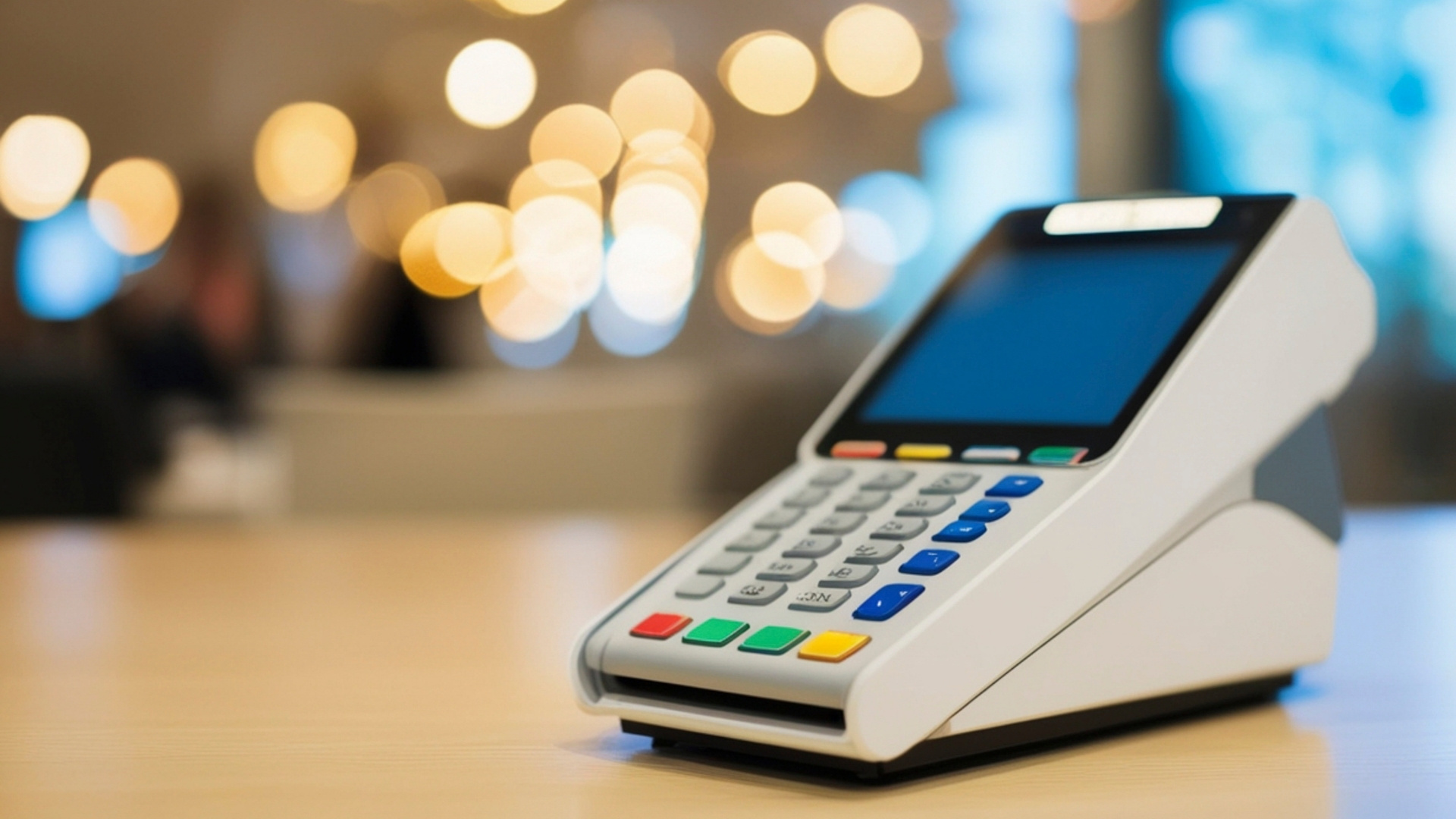
In a restaurant, inventory management is tied directly to what’s being sold during service. Instead of checking stock after closing, the system updates it as orders come in. When a POS is connected to inventory, each order affects stock immediately.
Here’s how that plays out during a shift:
In setups where ingredient mapping is configured, the system tracks the components behind each dish. If one ingredient runs out, any item linked to it can be adjusted or paused accordingly.
By the end of the shift, sales data and recorded stock levels are already aligned based on what was entered into the system. This reduces the need for manual reconciliation later.
In practice, the system connects:
When these stay aligned, staff spend less time correcting orders or checking availability during service.
Most systems list the same features, but what matters is how they hold up when your team is in the middle of service. These are the ones that directly affect how your kitchen and front-of-house run during a shift.
1. Real-Time Stock Sync Across All Order Sources
When dine-in, takeaway, and online orders are all pulling from the same stock, delays in updates create problems fast. With real-time syncing:
This reduces situations where the same dish is sold multiple times after the stock runs out.
2. Ingredient-Level Tracking
Tracking only finished dishes doesn’t help when multiple menu items depend on the same ingredient. With ingredient mapping:
This is especially useful for menus where one base item is used across several dishes.
3. Automatic Item Unavailability
Calling out that an item is unavailable during a rush works in the kitchen, but it doesn’t always reach every ordering channel. With item-level controls:
This helps limit incoming orders for items that can’t be fulfilled.
4. Centralized Control Across POS and Online Orders
When different platforms operate separately, mismatches in availability are common. With centralized control:
This keeps order flow consistent, especially during peak hours.
5. Simple Interface for Staff During Rush
Even a well-configured system falls apart if it slows down billing or confuses staff.
In practice, this means:
If staff hesitate when using the system, service speed suffers. Simplicity here has a direct impact on how smoothly orders move from counter to kitchen.
Recommended: The Complete Restaurant Guide to Automate Food Ordering.
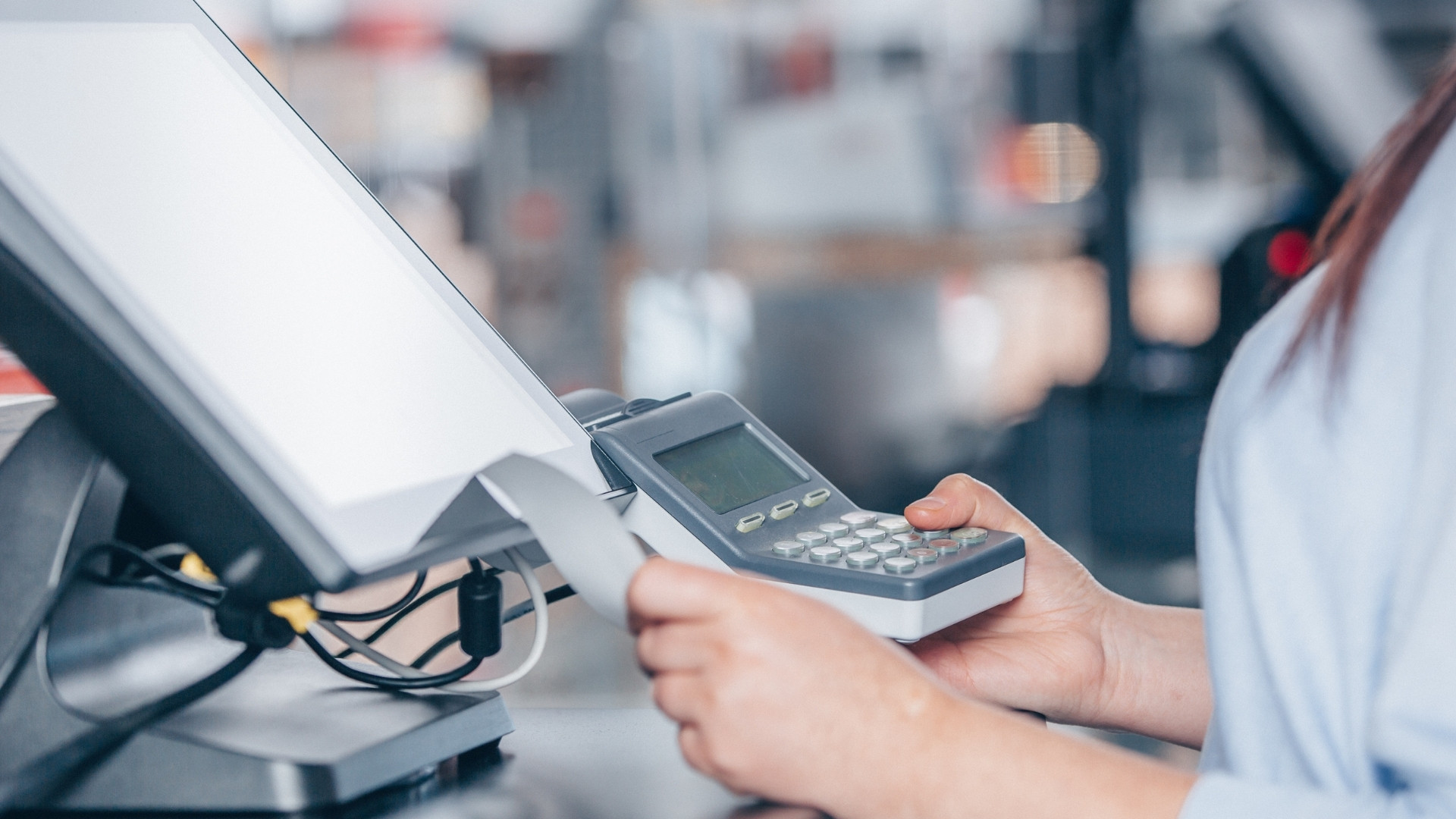
There’s no single system that fits every restaurant. The tools below are often listed as top POS inventory solutions, but their fit depends on how your kitchen runs, how complex your menu is, and how your orders come in.
Here’s how they hold up inside a restaurant setup:
1. Shopify POS
Best for: Cafés or outlets selling packaged items alongside food
What works inside a restaurant:
Where it falls short:
2. Square for Restaurants
Best for: Square is good for small restaurants or cafés with simple menus
What works inside a restaurant:
Where it falls short:
3. Lightspeed
Best for: Multi-location restaurants or larger operations
What works inside a restaurant:
Where it falls short in a kitchen workflow:
4. Clover
Best for: Quick-service restaurants and smaller outlets
What works inside a restaurant:
Where it falls short in a kitchen workflow:
5. KORONA POS
Best for: Hybrid setups (retail + food counters)
What works inside a restaurant:
Where it falls short in a kitchen workflow:
6. Cin7
Best for: Restaurants with advanced inventory or supply chain needs
What works inside a restaurant:
Where it falls short in a kitchen workflow:
7. Loyverse
Best for: Small restaurants or budget-conscious setups
What works inside a restaurant:
Where it falls short in a kitchen workflow:
Each of these systems covers different parts of the problem, but the right choice depends on how your restaurant actually runs during service. Let’s take a look at how to narrow it down.
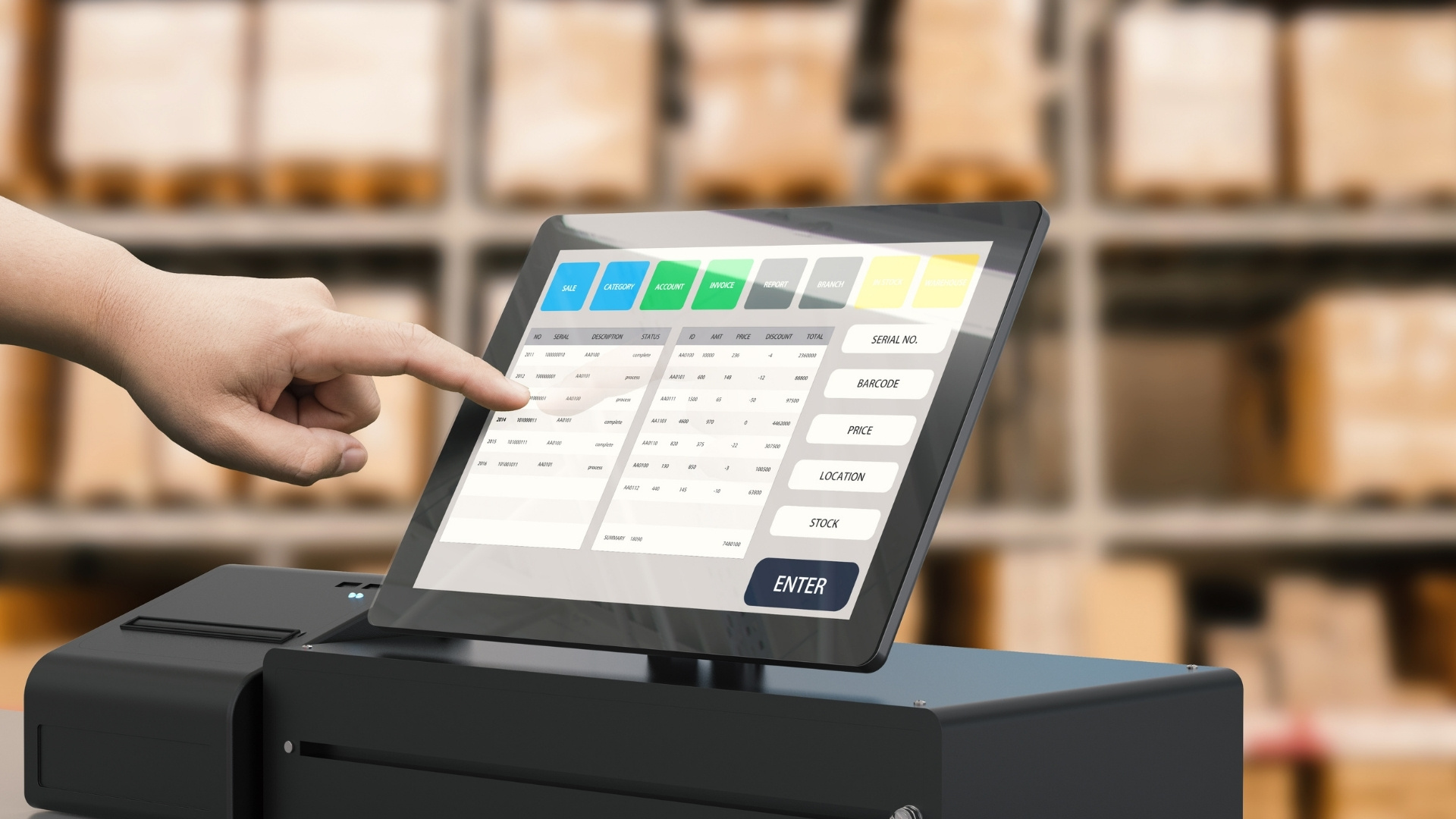
The right system depends less on features and more on how your restaurant runs day to day. These are the key decisions that shape what will actually work during service.
Once you look at your needs this way, another pattern becomes clear: most systems are built around retail workflows that don’t fully match how a restaurant operates during service.
Most POS inventory systems are built around tracking products, items that are stocked, sold, and counted as-is. That works in retail, where the product leaving the shelf is the same one recorded in the system.
In a restaurant, the flow is different. What’s sold is tied to what’s being prepared in real time.
When the system isn’t built around this flow, gaps show up during service, items appear available when they’re not, or orders continue for dishes that can’t be completed. This is where retail-style setups struggle to keep up with a live kitchen.
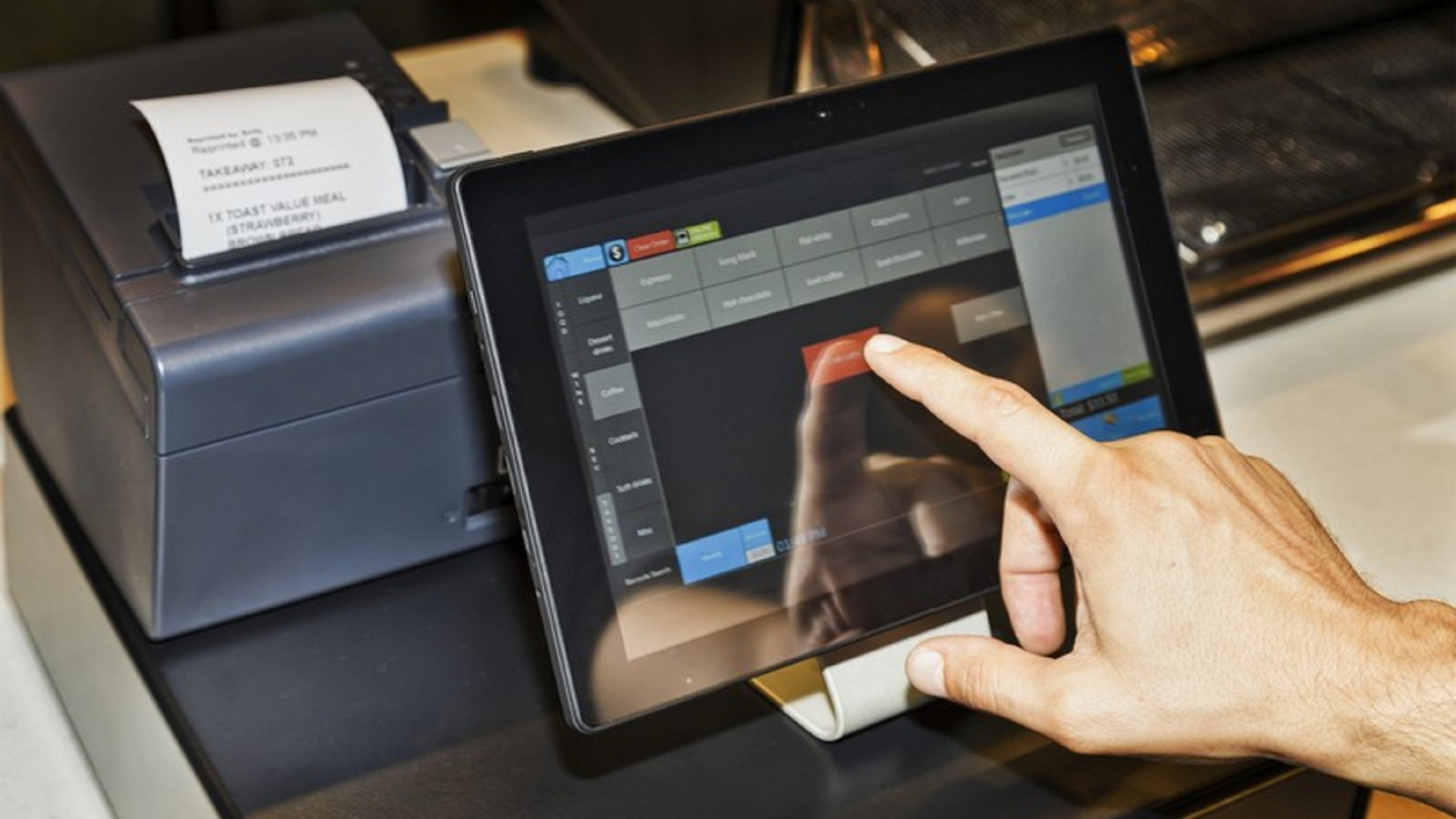
Most of the gaps we’ve covered show up when orders and availability aren’t aligned during service. That usually happens when different ordering channels operate separately from what’s happening inside the restaurant.
This is where iOrders supports the flow, not by replacing your inventory system, but by keeping your ordering layer tightly controlled and up to date.
In practice, this keeps your ordering side aligned with what your kitchen can actually handle at any given moment, reducing the gaps that usually show up during a busy shift. Book a demo to see how iOrders can work for your restaurant!
Inventory issues rarely show up in reports; they surface during service, when a dish gets ordered that can’t be prepared, and staff have to pause to double-check what’s actually available. These small gaps add up, slowing down your kitchen and putting pressure on your team.
The system you choose should keep orders and availability aligned while your shift is still running, especially when you’re handling dine-in, takeaway, and online orders at the same time. iOrders helps you stay in control of those ordering channels, so guests only see what your kitchen can actually serve.
If mismatched orders and last-minute cancellations are still part of your service, connect with the team and see how your ordering flow can stay aligned end to end.
1. How often should restaurant inventory be updated in a POS system?
In most setups, inventory should update with every order placed. This keeps stock aligned during service instead of relying on end-of-day adjustments. Manual checks can still be done periodically, but real-time updates reduce gaps while orders are coming in.
2. Can a POS system handle both food inventory and packaged items?
Yes, many systems can track both. However, packaged items are usually tracked as fixed units, while food items may require ingredient mapping. The setup depends on how detailed your menu and stock tracking need to be.
3. What happens if inventory is not synced with online ordering platforms?
Orders can continue for items that are no longer available in-house. This leads to cancellations, refunds, and delays during service, especially when staff have to inform customers after the order is placed.
4. Is inventory management useful for small restaurants with limited menus?
Even with a smaller menu, tracking stock helps prevent running out of key items during service. Simpler setups may not need advanced features, but basic tracking still helps maintain consistency.
5. How long does it take to set up inventory tracking in a POS system?
Setup time depends on the menu size and how detailed the tracking is. A simple item-based setup can be done quickly, while ingredient-level tracking requires more time to map dishes correctly before going live.